
Guide: Apple Social Log-in Set Up
1. Login to http://developer.apple.com/
2. Register a new identifier with a type of “App ID”
a. Go to https://developer.apple.com/account/resources/identifiers/list and press the ‘+’ icon
b. Select "App IDs"
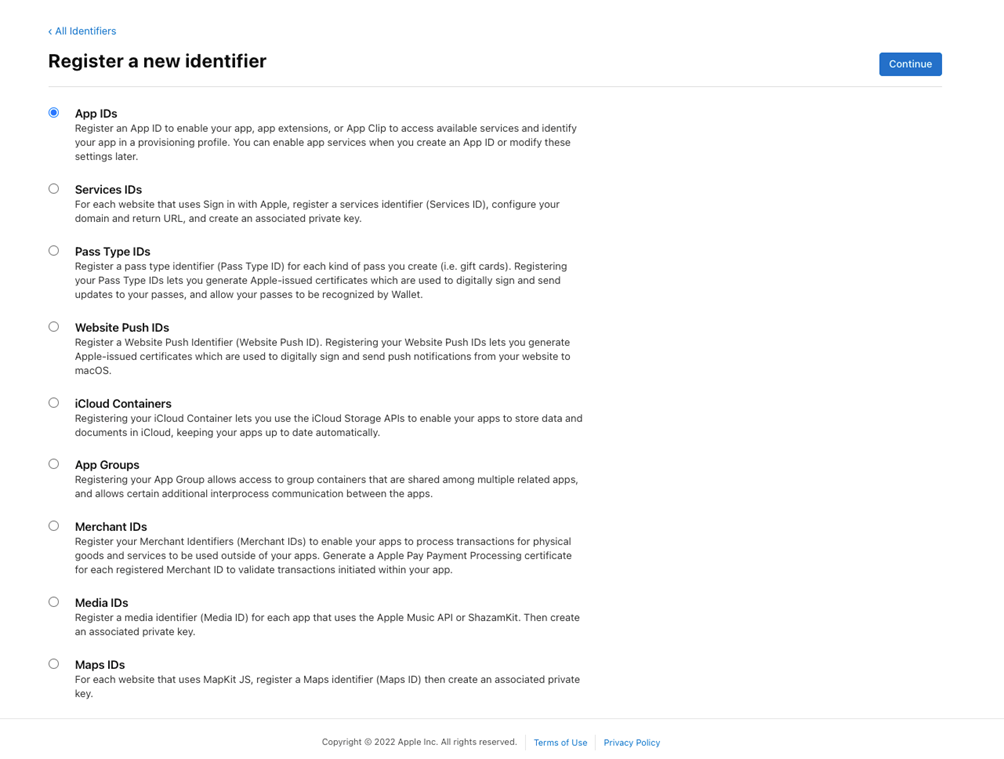
c. Enter a description and a bundle ID (i.e “Ticketing login” and “com.yourdomain”)
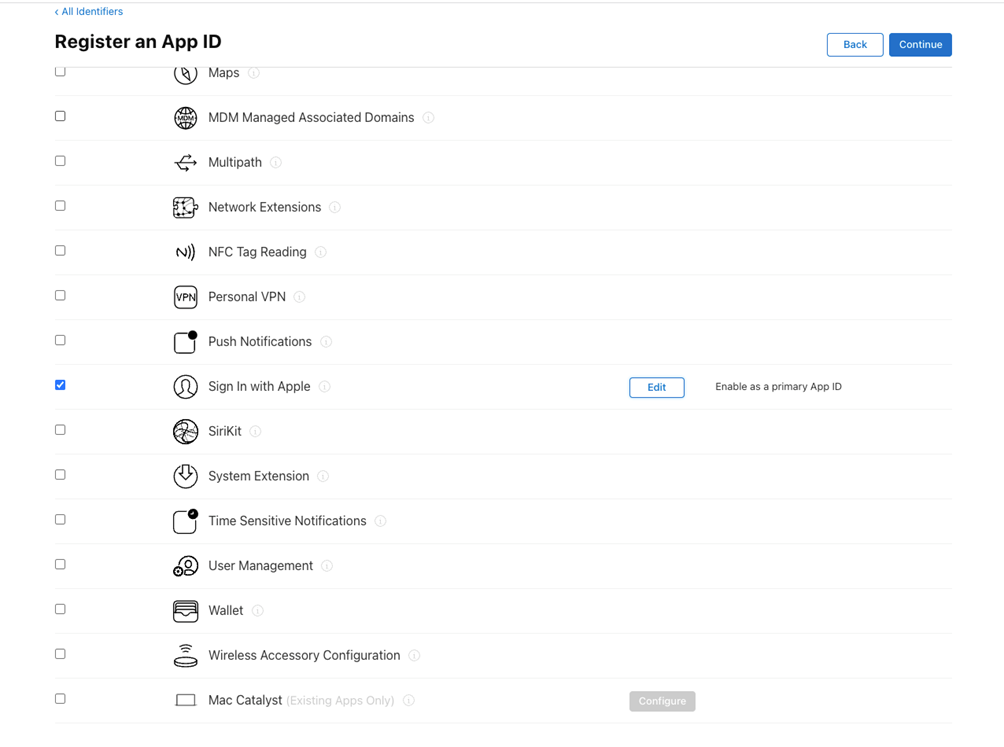
d. Scroll down through the list of capabilities and check the box next to Sign In with Apple.
3. Register a new identifier with type “Services ID”
a. Go to https://developer.apple.com/account/resources/identifiers/list and press the ‘+’ icon
b. Select Services IDs
c. Enter a description and bundle ID (i.e. “Ticketing login service” and “com.yourdomain.services”)
4. Configure your Services ID
a. Click into your services ID that you created in step 3
b. Enable Apple sign-in
c. Click the configure button and select "your App ID" that you created in step 2 as the Primary App ID
d. Click the ‘+’ button next to Website URLs and enter yourdomain.com in the “Domains and Subdomains” section, and enter https://external.yourdomain.com/login/apple/callback in the “Return URLs” section.
5. Create a private key
a. Go to https://developer.apple.com/account/resources/authkeys/list
b. Click the ‘+’ icon
c. Enter a name and check ‘Sign in with Apple’
d. Click ‘Configure’ next to ‘Sign in with Apple’ and select your App ID created in step 2
6. Gather all of your credentials
a. Your “Apple Client ID” is the ‘bundle ID’ from your Services ID created in step 3
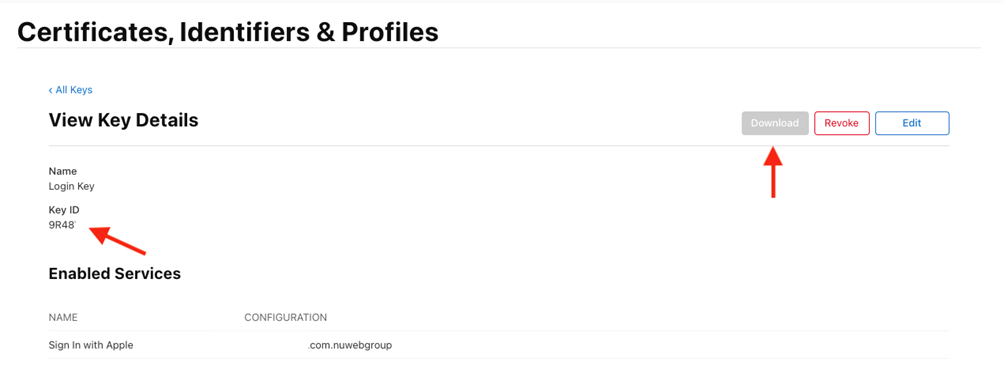
b. Your “Apple Private Key ID” is available on the private key created in step 5
c. Your “Apple Private Key” is the file contents of the downloaded version of your key from step 5 (open the file in any text editor and copy the entire contents)
d. Your “Apple Team ID” should be visible next to your name in the top right corner.
7. Register the domain that will be used for transactional emails (reseller ‘from’ email) in your apple account under Certificates, Identifiers & Profiles > More > Configure:
(https://developer.apple.com/account/resources/services/configure)